



SageAttention on Windows [Installation Guide]
SageAttention on Windows [Installation Guide]
[INSTALLATION GUIDE]
᛫
Dec 2, 2025
᛫
by Mickmumpitz
This article describes how to install SageAttention on Windows thanks to woctordho's work on the Windows versions of Triton and SageAttention. He also has written install steps. This article is only an attempt to fill the gaps of missing technical knowledge and show a clearer step-by-step guide.
Using SageAttention is extremely helpful to reduce generation times, especially for Kijai's workflows and generating videos with Wan. The results were more than twice as fast, which is necessary when generation times go from 10 minutes to 4–5 minutes.
The first part of this guide describes how to install triton-windows, while the second part is about installing SageAttention.
Prerequisites
Use the portable version of ComfyUI. Using this guide for ComfyUI's version on Pinokio or the installed version is strongly discouraged.
Updating your NVIDIA drivers is maybe not 100% necessary, but it is still a good moment to do it.
Git
Python 3.13
This article describes how to install SageAttention on Windows thanks to woctordho's work on the Windows versions of Triton and SageAttention. He also has written install steps. This article is only an attempt to fill the gaps of missing technical knowledge and show a clearer step-by-step guide.
Using SageAttention is extremely helpful to reduce generation times, especially for Kijai's workflows and generating videos with Wan. The results were more than twice as fast, which is necessary when generation times go from 10 minutes to 4–5 minutes.
The first part of this guide describes how to install triton-windows, while the second part is about installing SageAttention.
Prerequisites
Use the portable version of ComfyUI. Using this guide for ComfyUI's version on Pinokio or the installed version is strongly discouraged.
Updating your NVIDIA drivers is maybe not 100% necessary, but it is still a good moment to do it.
Git
Python 3.13
Installing Triton
First, install vsredist from https://aka.ms/vs/17/release/vc_redist.x64.exe.
CD in PowerShell to your ComfyUI folder, where you can see the python_embeded.
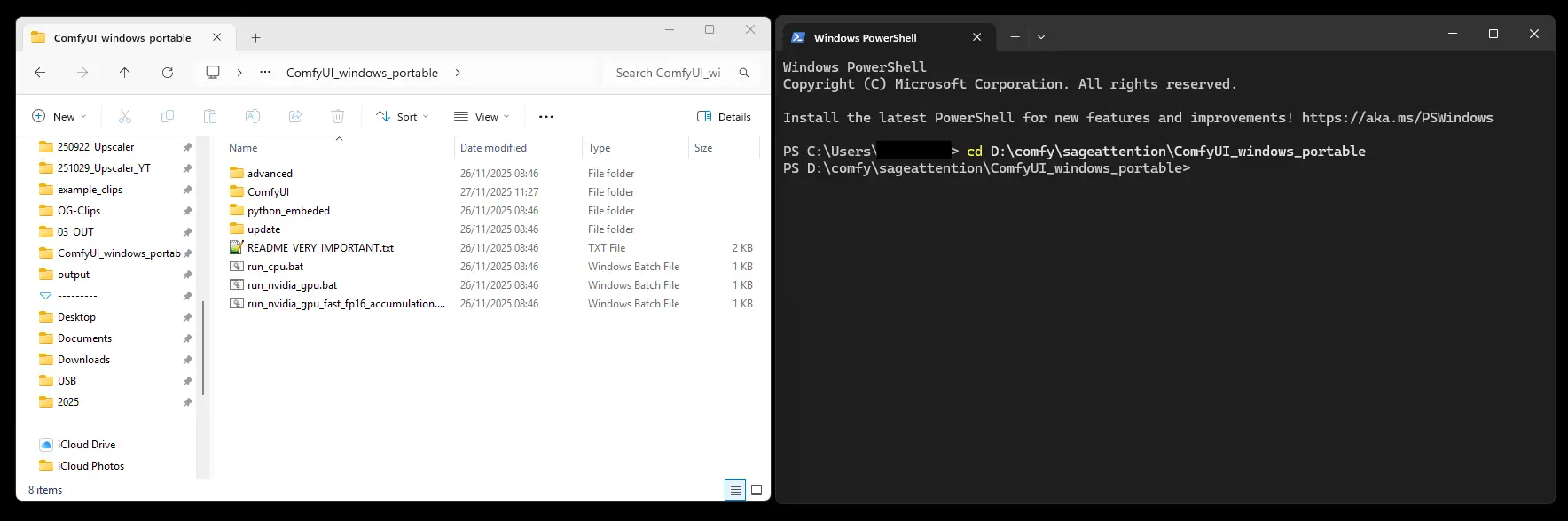
Check the Python version with this command:
.\python_embeded\python.exe --version
It should be Python 3.13.x.
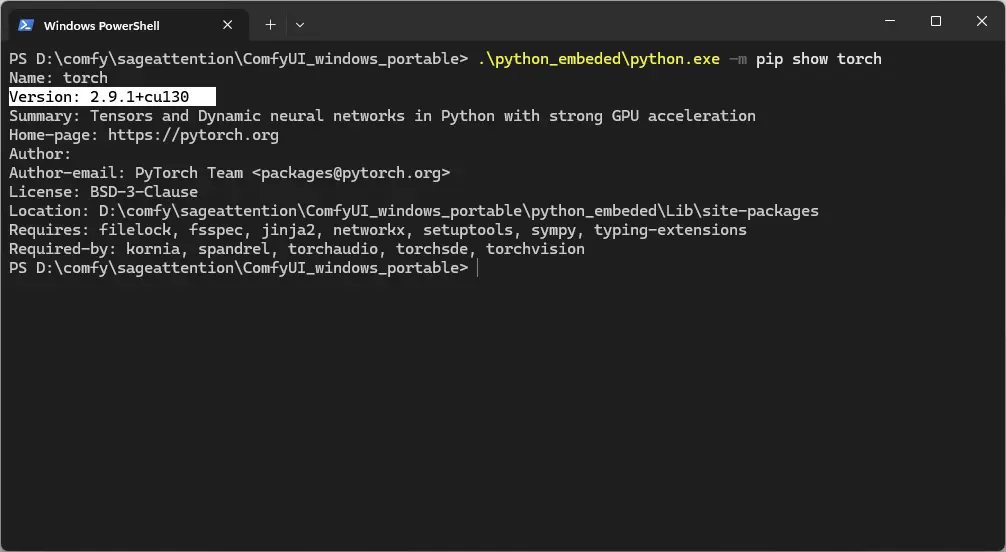
Now we need to check the PyTorch version, because we need to install the corresponding Triton version.
You can do this with this command:
.\python_embeded\python.exe -m pip show torch
Here you can see the version:
Here you can check the compatible PyTorch and Triton versions: https://github.com/woct0rdho/triton-windows?tab=readme-ov-file#3-pytorch
PyTorch | Triton |
|---|---|
2.4 | 3.1 |
2.5 | 3.1 |
2.6 | 3.2 |
2.7 | 3.3 |
2.8 | 3.4 |
2.9 | 3.5 |
You can find special notes regarding RTX 30xx and especially RTX 20xx here. RTX 20xx series cards only support Triton up until version 3.2.
In my case, I have PyTorch version 2.9.1, so I need to install Triton 3.5.
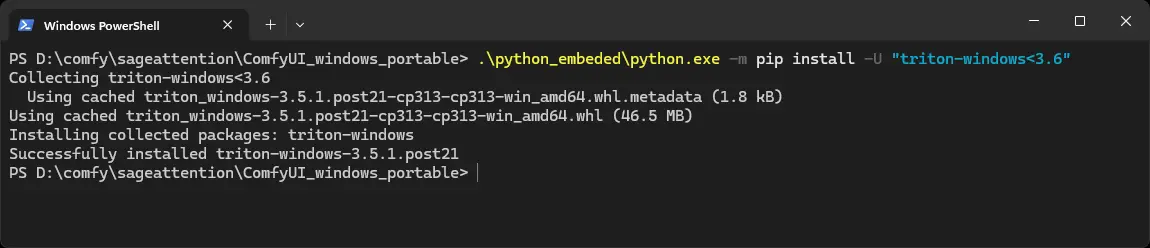
Install Triton with a version limitation. Woct0rdho recommends using a version limiter, so the installation won't break when a new Triton version releases. So for me, the command is:
.\python_embeded\python.exe -m pip install -U "triton-windows<3.6"
As mentioned before, for RTX 20xx cards you need to use Triton 3.2, so the command is:
.\python_embeded\python.exe -m pip install -U "triton-windows<3.3"
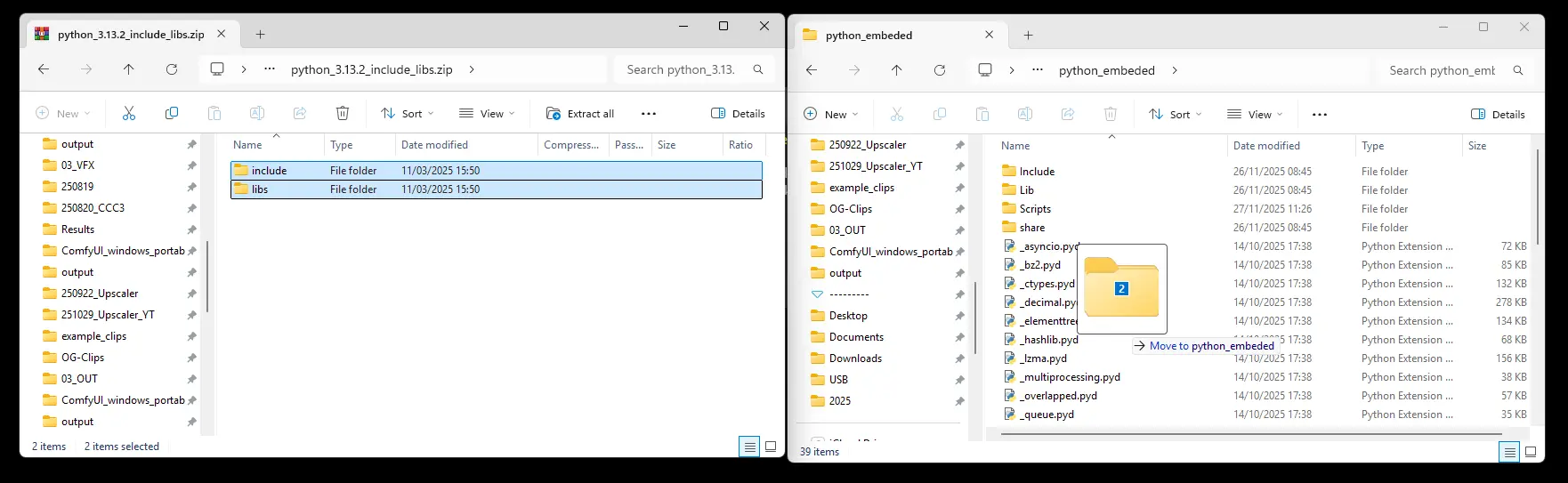
Download this zip: https://github.com/woct0rdho/triton-windows/releases/download/v3.0.0-windows.post1/python_3.13.2_include_libs.zip
You need to extract the folders “include” and “libs” into your python_embedded folder.
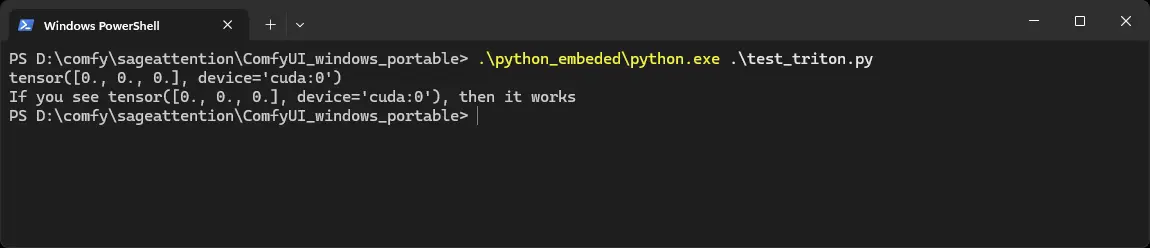
The installation is now done! You can check if Triton works with this test_triton.py. Download the file here: https://github.com/mickmumpitz-ai/Assets/blob/main/sageattention/test_triton.py
Copy it into your ComfyUI_windows_portable folder and run it with this command:
.\python_embeded\python.exe .\test_triton.py
Installing SageAttention
The hard part is done! This should be a bit faster.
To install SageAttention, you have to install a wheel. Go to the releases page of woct0rdho's SageAttention repository: https://github.com/woct0rdho/SageAttention/releases
Attention: As of November 11, 2025, there is a Latest and a Pre-release release. Since woct0rdho himself labels the Pre-release as experimental, make sure to download an asset from Latest.
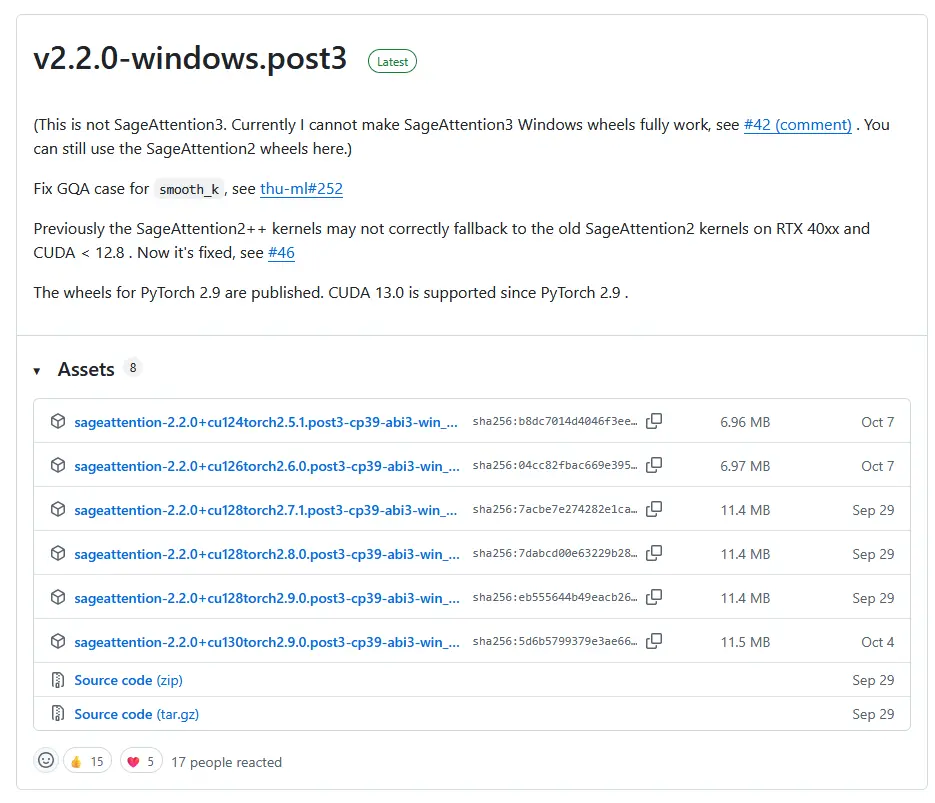
Here we need to pick the correct version! I have PyTorch 2.9.1 and CUDA 13, so I need to download this wheel: sageattention-2.2.0+cu130torch2.9.0.post3-cp39-abi3-win_amd64.whl
If you have PyTorch 2.9.1, but CUDA 12.8 or lower you need to pick sageattention-2.2.0+cu128torch2.9.0.post3-cp39-abi3-win_amd64.whl.
You can see cu130 represents CUDA 13 and cu128 represents CUDA 12.8.
The CUDA 12.8 version is backwards compatible, so you don't need to worry if your specific CUDA version isn't listed.
Copy the wheel file again into your ComfyUI_windows_portable folder. Install it with this command:
.\python_embeded\python.exe -m pip install .\[YOUR-DOWNLOADED-WHEEL-FILE
So for me it looks like this:
.\python_embeded\python.exe -m pip install .\sageattention-2.2.0+cu130torch2.9.0.post3-cp39-abi3-win_amd64.whl

You can again check it with the .py file provided by woct0rdho:
https://github.com/woct0rdho/SageAttention/blob/main/tests/test_sageattn.py
Copy it to the ComfyUI_windows_portable folder and run it with this command:
.\python_embeded\python.exe .\test_sageattn.py
You should see a repsponse like this:

Now you only need to edit your "run_nvidia_gpu.bat" inside your ComfyUI_windows_portable folder with a text editor.
Add this to the first line: --use-sage-attention
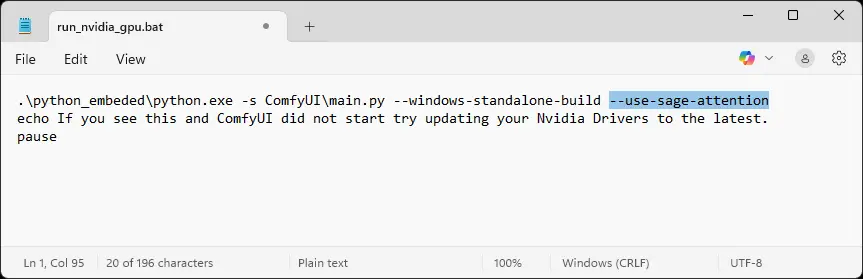
Save it and run the run_nvidia_gpu.bat. You should now see the line "Using sage attention."
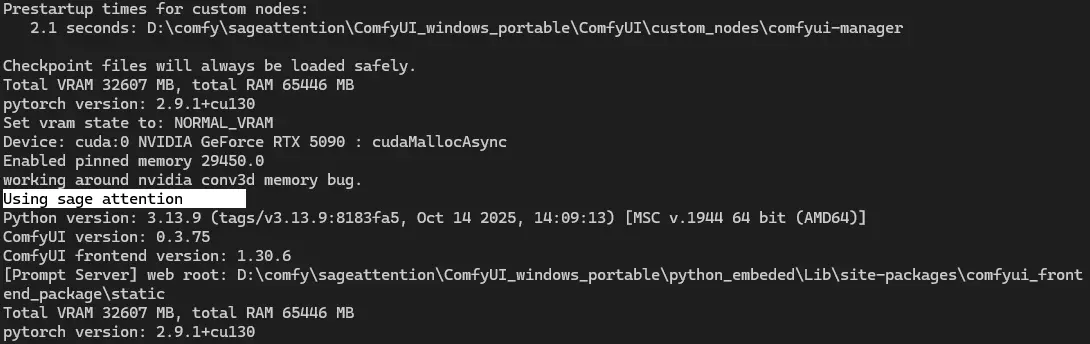
SageAttention should work now!
Using Sage Attention in Kijai workflows
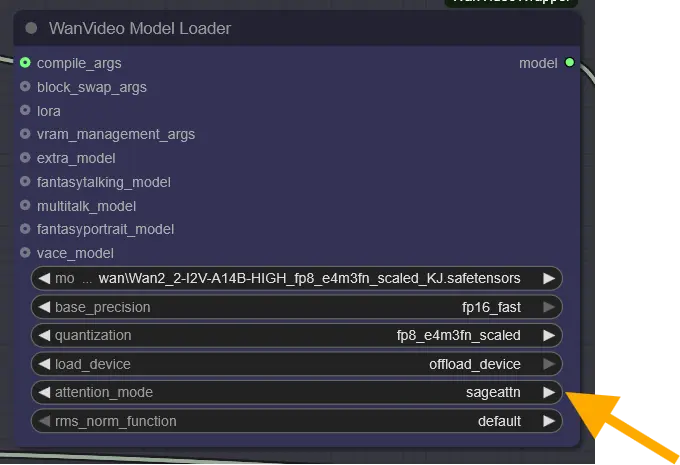
In the model loader, Kijai uses SageAttention by default! If it is set to sdpa, change it to sageattn.
Resolution Settings
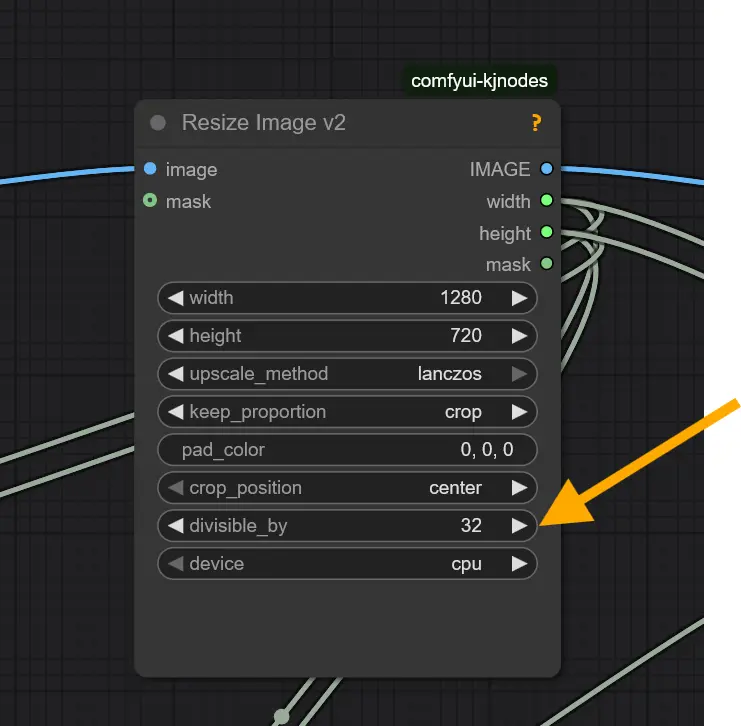
In the Resize Image Node, Kijai uses the divisible_by attribute with a value of 32. If you disable this, SageAttention won't work in some cases.
WanVideo Torch Compile Settings
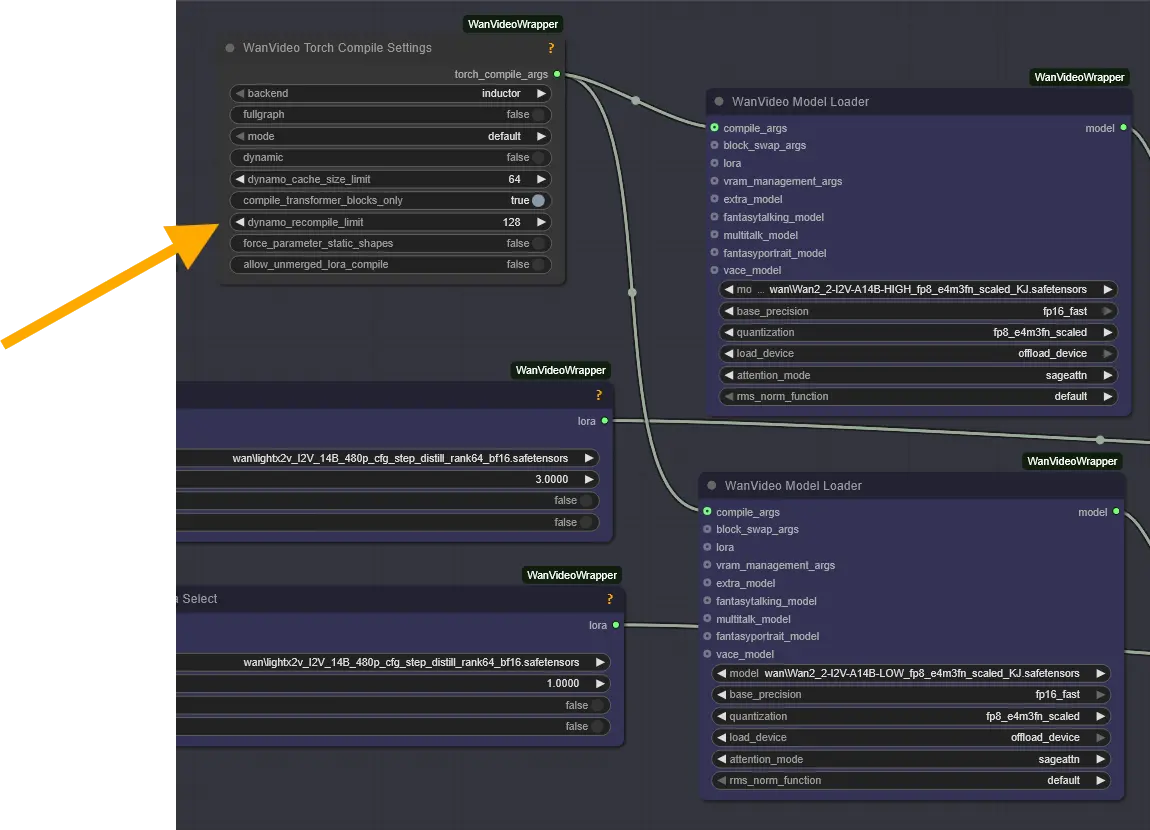
We don't have enough experience with the "WanVideo Torch Compile Settings" node yet. If you're curious about it, check back on this article — we'll update it once we're confident in our findings.
However, we can already confirm that disconnecting the node reduces VRAM and memory usage, but it also slows down generation time.
Here is a test generating an 81-frame video:
WanVideo Torch Compile Settings | Max VRAM | Max RAM | Generation time |
|---|---|---|---|
Connected | 26.2 GB | 60 GB | 144.93 seconds |
Disconnected | 24,9 GB | 56 GB | 161.18 seconds |
sdpa (disabled SageAttention) | 24.9 GB | 57 GB | 432.83 seconds |
This means you should disconnect the node if you get an OutOfMemoryError!
Installing Triton
First, install vsredist from https://aka.ms/vs/17/release/vc_redist.x64.exe.
CD in PowerShell to your ComfyUI folder, where you can see the python_embeded.
Check the Python version with this command:
.\python_embeded\python.exe --version
It should be Python 3.13.x.
Now we need to check the PyTorch version, because we need to install the corresponding Triton version.
You can do this with this command:
.\python_embeded\python.exe -m pip show torch
Here you can see the version:
Here you can check the compatible PyTorch and Triton versions: https://github.com/woct0rdho/triton-windows?tab=readme-ov-file#3-pytorch
PyTorch | Triton |
|---|---|
2.4 | 3.1 |
2.5 | 3.1 |
2.6 | 3.2 |
2.7 | 3.3 |
2.8 | 3.4 |
2.9 | 3.5 |
You can find special notes regarding RTX 30xx and especially RTX 20xx here. RTX 20xx series cards only support Triton up until version 3.2.
In my case, I have PyTorch version 2.9.1, so I need to install Triton 3.5.
Install Triton with a version limitation. Woct0rdho recommends using a version limiter, so the installation won't break when a new Triton version releases. So for me, the command is:
.\python_embeded\python.exe -m pip install -U "triton-windows<3.6"
As mentioned before, for RTX 20xx cards you need to use Triton 3.2, so the command is:
.\python_embeded\python.exe -m pip install -U "triton-windows<3.3"
Download this zip: https://github.com/woct0rdho/triton-windows/releases/download/v3.0.0-windows.post1/python_3.13.2_include_libs.zip
You need to extract the folders “include” and “libs” into your python_embedded folder.
The installation is now done! You can check if Triton works with this test_triton.py. Download the file here: https://github.com/mickmumpitz-ai/Assets/blob/main/sageattention/test_triton.py
Copy it into your ComfyUI_windows_portable folder and run it with this command:
.\python_embeded\python.exe .\test_triton.py
Installing SageAttention
The hard part is done! This should be a bit faster.
To install SageAttention, you have to install a wheel. Go to the releases page of woct0rdho's SageAttention repository: https://github.com/woct0rdho/SageAttention/releases
Attention: As of November 11, 2025, there is a Latest and a Pre-release release. Since woct0rdho himself labels the Pre-release as experimental, make sure to download an asset from Latest.
Here we need to pick the correct version! I have PyTorch 2.9.1 and CUDA 13, so I need to download this wheel: sageattention-2.2.0+cu130torch2.9.0.post3-cp39-abi3-win_amd64.whl
If you have PyTorch 2.9.1, but CUDA 12.8 or lower you need to pick sageattention-2.2.0+cu128torch2.9.0.post3-cp39-abi3-win_amd64.whl.
You can see cu130 represents CUDA 13 and cu128 represents CUDA 12.8.
The CUDA 12.8 version is backwards compatible, so you don't need to worry if your specific CUDA version isn't listed.
Copy the wheel file again into your ComfyUI_windows_portable folder. Install it with this command:
.\python_embeded\python.exe -m pip install .\[YOUR-DOWNLOADED-WHEEL-FILE
So for me it looks like this:
.\python_embeded\python.exe -m pip install .\sageattention-2.2.0+cu130torch2.9.0.post3-cp39-abi3-win_amd64.whl
You can again check it with the .py file provided by woct0rdho:
https://github.com/woct0rdho/SageAttention/blob/main/tests/test_sageattn.py
Copy it to the ComfyUI_windows_portable folder and run it with this command:
.\python_embeded\python.exe .\test_sageattn.py
You should see a repsponse like this:
Now you only need to edit your "run_nvidia_gpu.bat" inside your ComfyUI_windows_portable folder with a text editor.
Add this to the first line: --use-sage-attention
Save it and run the run_nvidia_gpu.bat. You should now see the line "Using sage attention."
SageAttention should work now!
Using Sage Attention in Kijai workflows
In the model loader, Kijai uses SageAttention by default! If it is set to sdpa, change it to sageattn.
Resolution Settings
In the Resize Image Node, Kijai uses the divisible_by attribute with a value of 32. If you disable this, SageAttention won't work in some cases.
WanVideo Torch Compile Settings
We don't have enough experience with the "WanVideo Torch Compile Settings" node yet. If you're curious about it, check back on this article — we'll update it once we're confident in our findings.
However, we can already confirm that disconnecting the node reduces VRAM and memory usage, but it also slows down generation time.
Here is a test generating an 81-frame video:
WanVideo Torch Compile Settings | Max VRAM | Max RAM | Generation time |
|---|---|---|---|
Connected | 26.2 GB | 60 GB | 144.93 seconds |
Disconnected | 24,9 GB | 56 GB | 161.18 seconds |
sdpa (disabled SageAttention) | 24.9 GB | 57 GB | 432.83 seconds |
This means you should disconnect the node if you get an OutOfMemoryError!
© 2025 Mickmumpitz
© 2025 Mickmumpitz
© 2025 Mickmumpitz